











How Students Can Convert Images to Text for Faster Learning
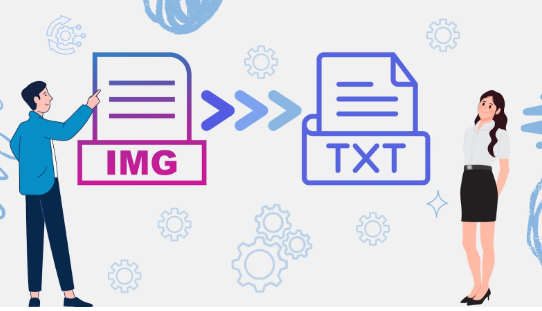
While learning, students often come across images that contain valuable information that they want to extract. However, doing the extraction manually is not convenient. It not only takes their valuable time and effort, but also affects the speed of their learning.
So, what should they do? There is no need to look around, as we have come up with a couple of quick ways students can use to transform images into editable text.
Without any further delay, let’s dig into the details.
Two Easy Ways to Convert Images into Editable Text
Students can use any of the following ways to convert images into text, and ensure faster learning.
- Use an Online Picture to Text Converter
An image-to-text converter is a specially designed tool that works to extract text from images, and handwritten notes in an editable format. There is a huge variety of such tools available, and most of them are free, accurate, and simple to use.
However, we personally recommend going with the one with the following characteristics:
- Batch processing: Refers to the ability to convert multiple images into text. This will further speed up the conversion process and ultimately ensure fast learning.
- Multilingual support: An image-to-text converter is most likely to be a reliable option if it can extract text from images in different languages.
- Diverse format: Go with a converter that accepts images in formats such as JPG, PNG, JPEG, and more.
To demonstrate the procedure, we picked the image to text converter by considering the aforementioned factors.
Here are the steps you need to follow:
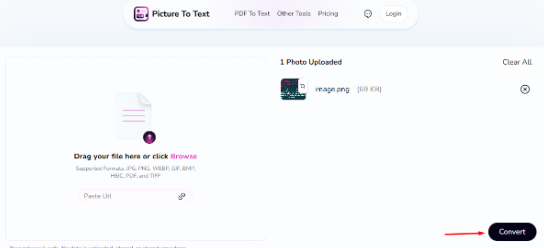
Upload the required image: Upload the photo you want to extract editable text from. The uploading can be done in several ways. For example, you can directly upload the picture from the gallery, drag/drop, or copy/paste.
Start conversion: Now, simply hit the “Convert” button to start the extraction process.
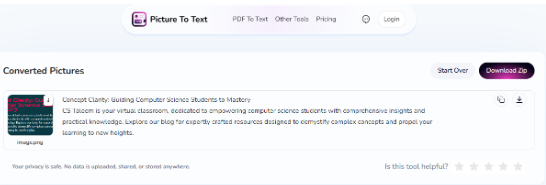
Review the output results: Within a matter of seconds, the tool will provide you with the extracted text that you can review and read to ensure fast learning.
2. Use the Google Lens
Google Lens is another way that students can use to quickly convert images into text. Google Lens is primarily developed for “Image Search.” But it also has the option to extract editable text.
Here are the steps students need to follow in this regard:
Open Image with Google Lens: First, open the required image in Google Lens. Now, here are the two conditions. If the image is available online, then simply right-click on it and select “Search with Google Lens” from the given options.
On the other hand, if the photo is on your device, then go to Google.com, and click on the “Image” icon appearing on the right side of the search bar. Upon clicking, it will provide you with the option to upload.
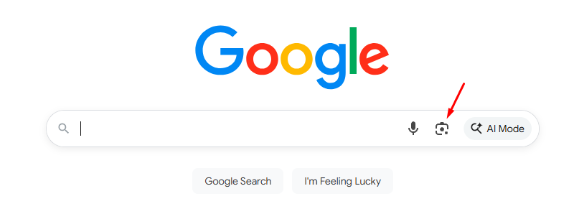
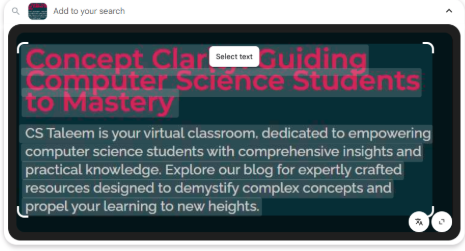
Double-click to select the text: When the image is opened in Google Lens, you are required to double-click the text, and then start selecting the information you want to copy.
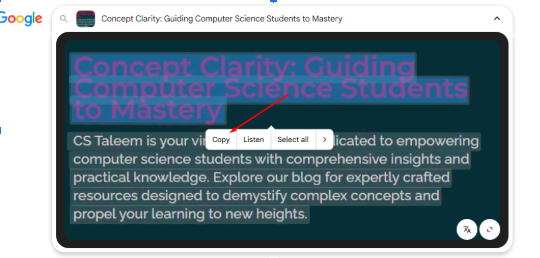
Copy the Text: When the text selection is made, Google Lens will provide you with multiple options, including Copy, Listen and more. After copying, students can save it anywhere and ultimately use that information for learning.
Tips to Keep in Mind
When converting images into editable text, students need to keep multiple things in mind.
Images should be high-quality: The images you are processing should be of high quality in terms of resolution. Otherwise, the tool may struggle to recognize the text, and the overall chances of inaccurate text will increase.
Text shouldn’t be too close to its border: Make sure the image you are processing does not have text that is too close to its border. This can also be a cause of struggle for the tool during the conversion process.
Wrapping Up
Oftentimes, images contain valuable information that students need to extract to ensure learning. However, getting the text extraction job done manually isn’t convenient. But don’t worry, there are a couple of quick methods available that can be adopted in this regard. Both of them are explained in this blog along with a step-by-step procedure.
Hopefully, you will find the given information valuable and interesting.