












Best Program Uninstallers in 2026: 6 Tools Tested and Ranked
Removing a program from Windows sounds simple. Open the Apps settings, find the software, click Uninstall, and move on. The problem is that this process does not always remove everything. Old folders, cache files, registry entries, and other data can stay behind after the main program is gone.
That is why a dedicated program uninstaller can be useful. These tools are designed to handle software removal in more detail than the standard Windows option. Some can also remove several programs together, deal with software that refuses to uninstall, and scan for files left behind.
For 2026, we looked at the features that matter most in an uninstaller, including removal speed, batch uninstall support, handling of stubborn programs, leftover cleanup, and storage management. Here are some top options for users who want more than basic program removal.
1. IObit Uninstaller 16 – Best Overall
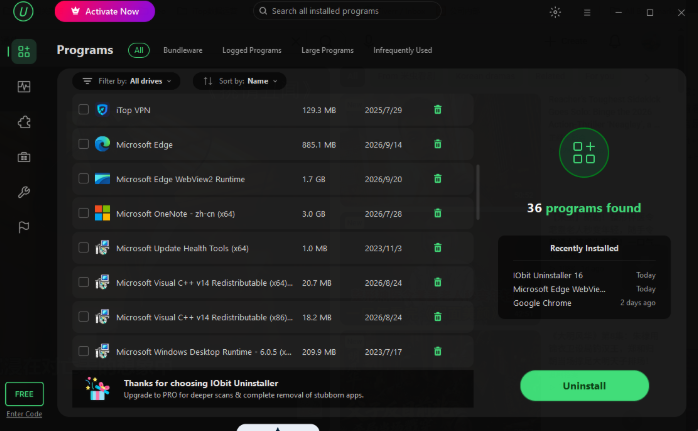
IObit Uninstaller 16 stands out because it combines regular software removal with deeper cleanup and storage management. It supports quick uninstall and batch uninstall, so users can remove one unwanted application or clean out several programs in one session.
Handles Stubborn Software
Its biggest advantage is handling software that does not cooperate with the normal Windows uninstall process. IObit says version 16 can remove more than 4,000 stubborn programs, including software with missing uninstallers, uninstall errors, or hidden installations.
Finds Leftover Files
The leftover cleanup is another reason it ranks highly. A normal uninstall does not always clear every related file. AppData folders can continue holding large caches from programs such as Discord and Spotify, while games and other applications may leave behind considerable amounts of data. IObit Uninstaller 16 uses deeper scanning to find leftover files and registry entries.
According to IObit Lab tests, these residual files can affect system responsiveness and application launch times by up to 27.3%.
Moves Programs to Another Drive
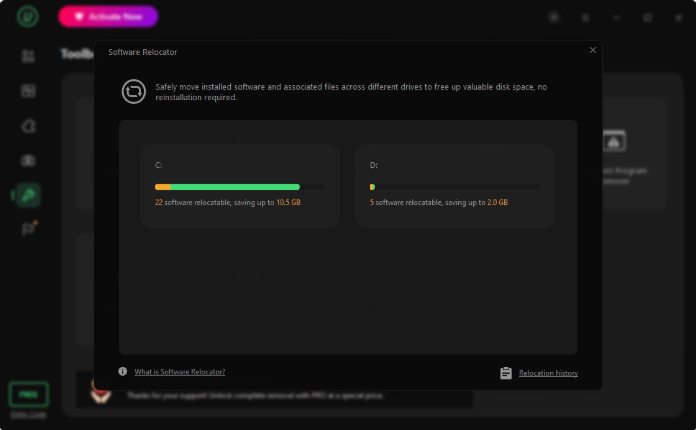
Version 16 also adds Software Relocator. Instead of deleting a large program just because the C: drive is running low on space, users can move supported installed software to another drive without reinstalling it. IObit says the process keeps personalized settings, login status, history, and shortcuts unchanged.
For users who regularly install and remove software, IObit Uninstaller uninstaller for Windows offers a useful mix of removal, cleanup, and storage tools.
2. Revo Uninstaller – Best for Detailed Removal
Revo Uninstaller is a familiar name among Windows users who want more control over program removal. Its main attraction is the ability to scan for traces after an application’s normal uninstaller has finished.
This can be helpful when a program leaves behind folders or registry entries. Advanced users can also use its additional cleanup tools to look for unwanted files.
The main drawback is that its wider feature set can feel less straightforward to new users. It is a good choice for people who want more control and are comfortable reviewing scan results before deleting them.
3. Geek Uninstaller – Best for Simplicity
Geek Uninstaller takes a simpler approach. Its lightweight interface focuses mainly on finding installed software and removing it without filling the screen with extra system utilities.
It is particularly useful for people who want a small tool for occasional software cleanup. The interface is easy to understand, and forced removal can help when a normal uninstall entry is broken or missing.
However, users looking for broader storage management and newer features may find it less complete than IObit Uninstaller 16.
3. Bulk Crap Uninstaller – Best for Large Cleanup Jobs
Bulk Crap Uninstaller, often called BCUninstaller, is designed around one major task: removing lots of unwanted software efficiently.
Batch removal is its strong point. Instead of going through installed programs one at a time, users can select multiple items and process them together. It can also help to automatically scans for leftover digital clutter after they are removed.
This makes it a practical option on PCs that have accumulated years of unused applications.
The interface is more utilitarian than polished, though, so it may take some time for first-time users to understand all of its options.
4. HiBit Uninstaller – Best Feature Variety
HiBit Uninstaller offers more than basic program removal. Along with uninstalling applications, it includes tools for cleaning leftovers and managing different parts of a Windows system.
Its wide selection of utilities makes it appealing to users who want several maintenance functions in one application. It can also help with programs that do not uninstall normally.
The trade-off is that its large collection of options can make the program feel busy. For users who prefer a cleaner and more focused interface, another option may be easier.
5. Windows Apps & Features – Best Built-in Option
Windows’ own Apps settings remain the simplest option because nothing needs to be downloaded. Users can open the installed apps list, choose a program, and select Uninstall.
For common applications that have a working uninstaller, this is often enough.
The problem appears when software is hidden, damaged, stubborn, or leaves data behind. Windows’ built-in process does not offer the same level of batch removal or deep leftover scanning found in dedicated uninstall tools.
It is therefore best suited to straightforward uninstall jobs rather than full software cleanup.
What Makes a Good Program Uninstaller in 2026?
The best uninstallers are no longer judged only by whether they can remove an application. A useful tool should also deal with what happens before and after the uninstall.
- Quick uninstall matters when you need to remove a single application without going through several menus.
- Batch uninstall is important for cleaning a computer that has accumulated many unused programs.
- Stubborn software removal becomes useful when an application has no working uninstaller, produces an error, or does not appear properly in Windows.
- Leftover scanning is also important. Applications can store data outside their main installation folders. AppData is one common location for caches and other files, which means deleting the main application does not necessarily recover all the space it used.
Finally, storage management is becoming more important as modern applications and games continue to grow. IObit Uninstaller 16 addresses this with Software Relocator, which lets users move supported programs to another drive rather than removing and reinstalling them.
Final Thoughts
The right choice depends on what you expect from the software.
If you only remove a program once in a while, Windows’ built-in option may be enough. If you want a lightweight tool, Geek Uninstaller is worth considering. For large batches of applications, Bulk Crap Uninstaller is a practical choice.
For users who want a broader solution, IObit Uninstaller 16 is the strongest overall pick. It covers everyday uninstalling while also addressing problems that the standard Windows tool does not handle as well.
Its support for more than 4,000 stubborn programs, batch removal, deeper leftover cleanup, and new Software Relocator feature give it a wider role than a basic uninstall utility. On those points, IObit Uninstaller 16 offers one of the more complete packages available today.