










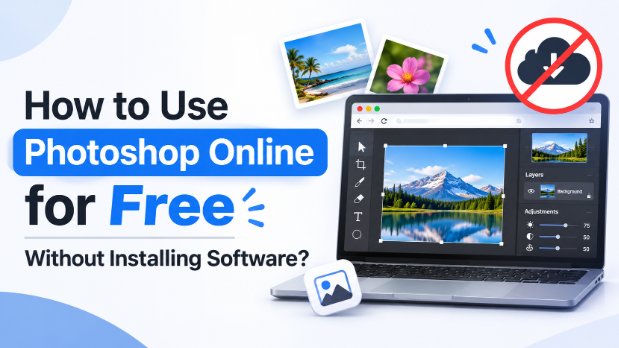
How to Use Photoshop Online for Free Without Installing Software?
Adobe Photoshop is a popular software used to edit photos. A downside of Adobe Photoshop is that to use it to its full you require to install it on your devices. The software is quite heavy and requires good specs for heavy tasks. Today Adobe offers a web version of Photoshop, but it requires an eligible subscription.
But what if we tell you that today you can use Photoshop as an online editor without any software installation or registration? A free alternative, PhotoStar, offers similar editing tools. PhotoStar is a free online Photoshop editor. It lets you perform all the image editing tasks and provides access to all the Photoshop tools for free.
What is PhotoStar and How Is It a Photoshop Alternative?
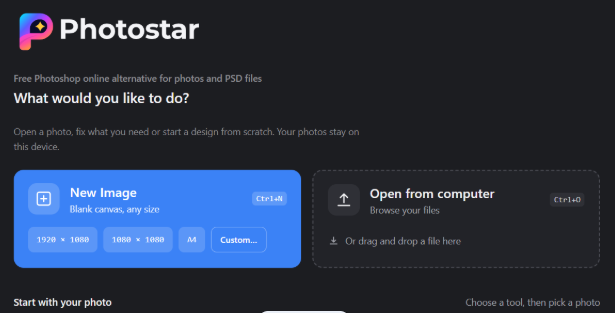
PhotoStar is a free online Photoshop alternative that is fully browser-based. It lets you use Photoshop in a web browser without registering or installing its desktop app. If you want to edit photos without paying for a subscription, you can try this free online Photoshop alternative instead.
Like Photoshop, the tools on PhotoStar offer many common photo editing features. For example, you can:
- Crop and resize photos.
- Adjust brightness, contrast, and colours.
- Remove unwanted objects.
- Remove or change image backgrounds.
- Add text and shapes.
- Work with layers.
- Open and edit supported PSD files.
How to Use Photoshop Online Without Installation?
Using Photoshop online is very easy now. There are several online photo editors available that you can use. PhotoStar is one of the best among them because it brings you almost all the Photoshop tools for free.
So, to use Photoshop online, open a modern browser such as Chrome, Firefox, or Edge. Next, visit the PhotoStar official website.
Upload your image
Once you open the PhotoStar editor, upload the image you want to edit. You can open images from your computer. It also supports drag-and-drop uploads. You may be able to open formats such as:
- JPEG
- PNG
- WebP
- GIF
- TIFF
PhotoStar also supports PSD. That means you can easily edit a Photoshop file with multiple layers.
Edit Your Image
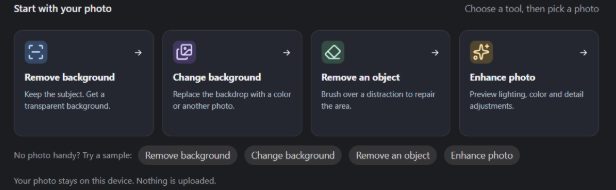
After uploading your image, you can start editing it. PhotoStar’s online editor offers various Photoshop tools such as crop, resize, rotate, and colour adjustments. You can also use advanced tools to remove backgrounds, erase unwanted objects, add text, and work with layers.
Save or Export Your Image
Once you finish editing, save your work. PhotoStar offers export options such as JPEG, PNG, and WebP. Choose the format that suits your needs and download the image. For example, use JPEG for regular photos and PNG when you need a transparent background.
What Can You Do With PhotoStar?
PhotoStar, the Photoshop alternative, offers several tools for basic and advanced photo editing. Here’s what you can use it for.
1. Edit and Adjust Photos
You can crop, resize, and rotate images. It also offers tools to adjust:
- Brightness
- Colours
- Levels
- Curves
These tools help you improve your photos without using complex editing software.
2. Work With Layers
PhotoStar supports layers, groups, masks, and adjustment layers. Layers let you edit different parts of an image separately. For example, you can add text on one layer and keep the original photo on another. You can also hide, show, or adjust layers without changing the entire image.
3. Remove Image Backgrounds
PhotoStar offers an automatic background removal tool. It can separate a subject from its background and create a transparent result. You can also use its Erase and Restore tools to fix areas that the automatic tool misses.
4. Remove Unwanted Objects
You can use PhotoStar to remove unwanted objects from photos. For example, you can remove:
- Small objects
- Signs
- Wires
- Distractions
PhotoStar also offers an AI option for more complex object removal. However, the results may vary depending on the image. Busy backgrounds and detailed patterns may need extra editing.
5. Open and Edit PSD Files
Another useful feature is PSD support. You can open supported Photoshop files in PhotoStar and work with their layers. It also supports several editing features:
- Masks
- Groups
- Text layers
6. Add Text and Shapes
PhotoStar also offers tools for adding text and shapes to images. You can add titles, captions, and other text elements. It also lets you change font styles, colours, and text sizes.
Final Thoughts
You do not need to install Photoshop to edit photos. The browser-based editor PhotoStar lets you perform many of the Photoshop editing tasks. Adobe Photoshop on the web is a good option if you already have an eligible subscription. However, free alternatives like PhotoStar can help you edit images without paying for desktop software. It is worth trying if you want a free online photo editor with layers, PSD support, background removal, and AI tools.