












What Happened When I Finally Organized My Windows Desktop with iTop Easy Desktop?
I used to think a messy Windows desktop was just part of working on a computer. With a few screenshots and some downloaded documents here and there resulted in a desktop screen full of icons. I could still use my PC, but finding one specific file often took longer than it should.
The problem became more noticeable when I had several projects open at once. Work files mixed with personal documents, installers, screenshots, and shortcuts. I would sometimes save something to the desktop because it was quick then forget about it completely.
So, I decided to try iTop Easy Desktop and see what would happen if I actually organized everything instead of putting off the cleanup.
What Was My First Impression of iTop Easy Desktop?
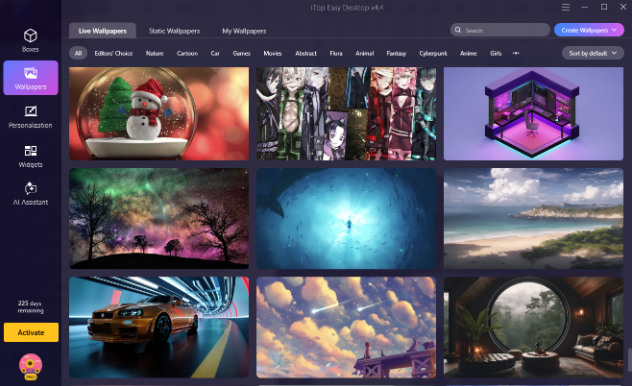
iTop Easy Desktop is a Windows desktop organizer software. It is built around the idea of organizing scattered icons and files into manageable areas. The software is designed to use minimal system resources.
What caught my attention was the one-click organization option. I didn’t want to spend an afternoon dragging hundreds of icons into folders. I wanted a quick starting point, followed by enough control to arrange things according to my workflow.
The software also goes beyond basic organization. It includes some amazing features ranging from desktop boxes to file search and Folder Portal to Private Box and even PawPal desktop pet.
That gave me several ways to change how I used my desktop instead of simply moving icons around.
How I Used iTop Easy Desktop to Organize My Windows Desktop?
Here are a few steps that I took to organize my desktop using this tool
Let iTop Easy Desktop Sort the Mess
After installing iTop Easy Desktop, I started with its one-click auto-organization feature.
The tool automatically grouped my desktop icons into categories instead of making me move every item manually. The official site says these groups can include things such as documents, images, applications, and folders. This was the moment I noticed the biggest difference.
Created Boxes Around My Actual Workflow
Automatic grouping was useful, but I didn’t want my desktop organized only by file type. My work doesn’t always follow that structure. I prefer to think in terms of projects and tasks, so I created boxes around the things I actually do.
For example, I made sections for:
- Current Work
- Screenshots
- Downloads
- Personal Files
- Software and Tools
The software allows users to create their own boxes and use them for different activities, including work, gaming, and personal use. This made more sense to me than having every type of file mixed together.
Used Search Instead of Hunting for Files
Another feature I found useful was the built-in search bar. Before using it, my usual method was to scan the desktop, open a few folders, and hope I remembered the file name. Now I can type the name of a file or folder and find it without manually checking every box.
Made the Layout Stay Organized
My biggest concern was that I would spend time organizing everything and then ruin the layout after a restart. That’s where Auto Save Layouts came in.
The feature saves a snapshot of my desktop arrangement, so I have a way to return to a preferred layout.
The Features I Started Using Frequently
Here are some amazing iTop Easy Desktop features that I liked.
PawPal Virtual Desktop Pet
PawPal is a virtual desktop pet that adds a friendly cat companion to my Windows workspace. It runs quietly with smooth animations, giving the desktop a little personality without interrupting my work.
Double-Click Hide
One small feature turned out to be particularly useful for screen sharing which was double-click hide.
Double-Click Hide lets me double-click the desktop and temporarily hide the boxes. The result is a much cleaner screen without forcing me to move or delete my files. I specifically use this iTop feature for situations such as screen sharing.
iNotes and Schedule
I initially installed iTop Easy Desktop purely for organization, but some of its other tools became useful during normal work.
The iNotes feature gave me a quick place for reminders, while Schedule can sync with Google Calendar and Outlook Calendar. There is also a screenshot tool that can capture selected areas and create scrolling screenshots.
AI Assistant and iPomodoro
The software also includes an AI Assistant powered by ChatGPT, with preset prompts and tools for tasks such as translation and creative writing.
For focus sessions, iPomodoro breaks work into focused periods followed by short rests. I found this more useful on days when I was jumping between too many tasks.
What Changed After I Organized Everything?
The most noticeable change wasn’t how attractive my desktop looked. It was how little attention I needed to give it.
Before, I constantly had to search through icons. After setting up the boxes, I knew where different types of files belonged. New downloads had a place to go, screenshots were easier to locate, and project files stopped competing for the same space.
I also noticed that my desktop stayed cleaner for longer because adding a new file didn’t automatically create another mess.
There are a few limitations. Setting up boxes takes some initial effort, especially if your desktop is already packed with files. Also, users who want very advanced organization controls may find the available options less extensive than they expect.
Still, for my needs, the simple setup worked better than constantly cleaning the desktop by hand.
Final Thoughts
Organizing my Windows desktop didn’t magically change the way I work. However, it removed a small source of daily frustration.
With iTop Easy Desktop, I could sort my existing clutter and search for files faster. The biggest benefit for me was simple. I didn’t need to spend hours manually maintaining my desktop. Once I gave my files a clear place to go, keeping the workspace tidy became much easier.