









What Is the Best PNG to SVG Converter? A Complete Guide
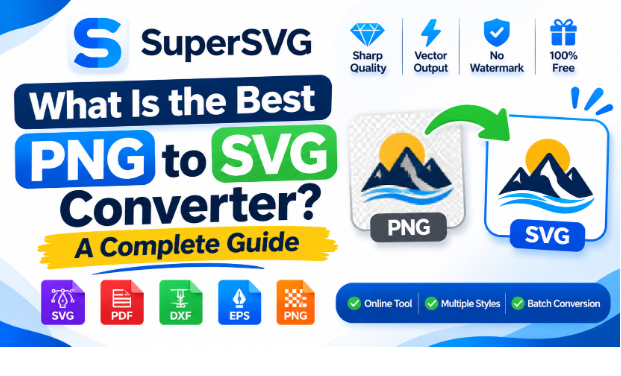
Picture this: you send a logo for print to a printer, but the result on the page comes back blurry. This can happen because of a PNG file. Portable Network Graphics (PNG) files are built from pixels and have fixed resolution. When you enlarge a PNG file, the pixels get stretched, and the edges look soft. That is why the use of SVG files for printing is recommended. Scalable Vector Graphics (SVG) are files that can easily scale to any size and resolution without distorting or getting blurry.
A PNG to SVG converter helps people turn their images that are in PNG format into an SVG file. By converting files, people can send them for printing tension-free and get the image printed on paper without blur or distortion. But what makes a PNG-to-SVG converter, and what tool should you choose? Let’s take a look.
What is The Difference Between PNG and SVG?
| Fact | PNG | SVG |
| Built from | Pixels | Shapes and paths |
| Resolution | Fixed | Scales to any size |
| Best for | Photos, screenshots | Logos, icons, cut files |
SVG is a royalty-free, open standard for graphics that can easily scale to different display resolutions. If you zoom into an SVG image, the image details will remain intact. The image will face no distortion or blur. However, if the image is in PNG format with a fixed resolution, it may get blurry upon zooming.
SuperSVG – PNG to SVG Converter
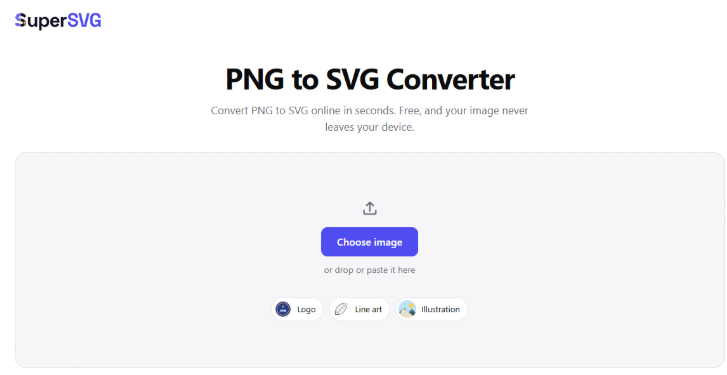
No single converter wins on every image. The best one fits your image and your goal. For converting images from PNG to SVG, SuperSVG is the best choice. Here are the reasons that make SuperSVG the best:
- Keeps the edges of the images sharp and clean.
- Lets you pick logos, line art, and photos.
- Exports the files after conversion without watermarks.
- Processes images inside the browser while keeping them secure.
- Handles a batch of files in one run.
- Supports transparent files.
- Doesn’t affect the image quality.
- Fully free to use, no daily limits.
How Does SuperSVG Work?
SuperSVG is very easy to use. You can convert PNG images into SVG with these three steps.
- Step 1 – Add an image to the tool. Either drop it into the toolbox, paste it, or upload a file manually.
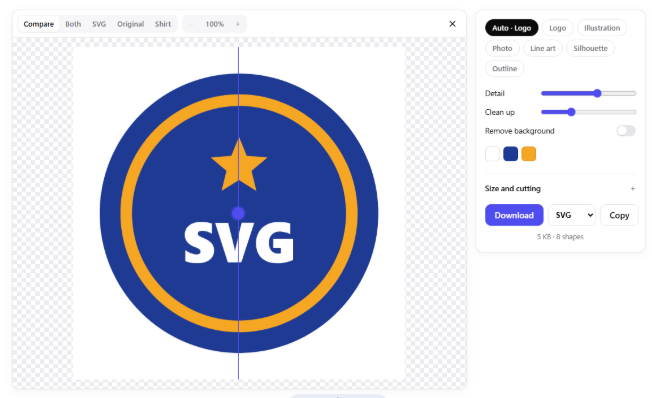
- Step 2 – Choose a style among Logo, Illustration, Photo, Line art, etc. Then adjust the colors if you want to make any changes. SuperSVG also lets you cut and resize the image before the conversion. All the changes made are implemented in real time.
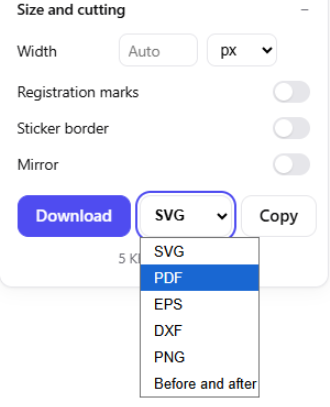
- Step 3 – Download your file. You can download the converted file as SVG, PDF, EPX, DXF, etc. To change the format, open the dropdown next to the download button.
SuperSVG accepts PNG, JPG, WEBP, GIF, BMP, and AVIF files. It traces the image into Bézier-curve paths. Each color becomes a separate shape.
Multiple Style Modes
| Style | What it Does |
| Auto | Picks settings for you |
| Logo | Keeps flat shapes, true circles, and sharp corners |
| Illustration | Handles flat art with more colors and builds real gradients |
| Photo | Gives a posterized look with 12 color layers by default |
| Line Art | Turns ink drawings into black and white lines |
| Silhouette | Makes one-color cut files |
| Outline | Makes line-based output for pens and engraving |
Output Formats
You can save SVG, PDF, DXF, EPS, or PNG files. You can also copy the SVG code. DXF suits laser cutters. EPS suits print work.
Extra Controls
SuperSVG includes a Detail setting for small edges. It can remove the background. You can click a color to remove it. You can also set the size in inches. Other options include:
- Registration marks
- Sticker borders
- Mirroring for iron-on projects
Pros and Cons
| Pros | Cons |
|
|
Who Should Use SuperSVG?
- Craft makers: Cut files and sticker borders help here.
- Designers: Turn old PNG logos into scalable files.
- Web owners: Replace heavy icon images with SVG.
- Laser cutter users: Export DXF files.
Tips to Get Better PNG to SVG Conversion
Here are some tips that can help you get better results when converting a PNG to SVG.
- Start with the largest image you have.
- Pick the style that matches your image.
- Simple images with flat colors usually trace best.
- Remove the background before you export.
- Test the Detail setting if small edges look rough.
Final Thoughts
SuperSVG is one of the best PNG to SVG converters. It matches the PNG to SVG conversion needs perfectly and lets users export results without any watermark. SuperSVG is fully free to use and offers multiple mode styles for conversion. If you need to convert a PNG to SVG, try SuperSVG and get quality results that retain the image quality.