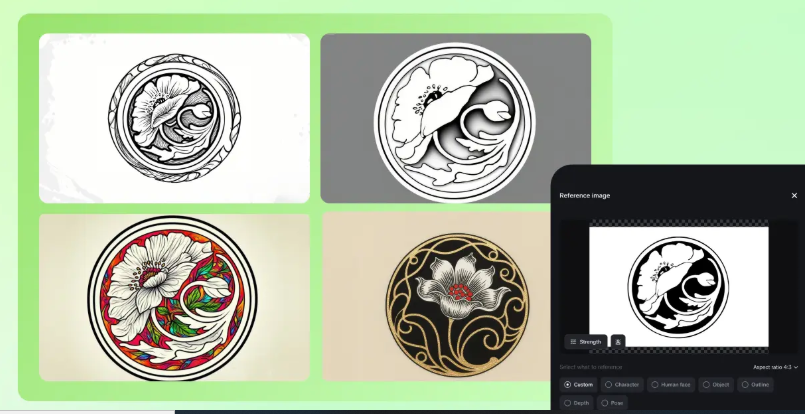
Choosing a tattoo is a long-term decision, so it’s worth exploring several design options before committing to one permanently. You might wonder how a particular pattern will look on your forearm or whether it will suit your shoulder blade. Creating a digital mockup helps you preview the design before scheduling an appointment with a tattoo artist. If you’re looking for the best free AI image generator, Dreamina offers a way to turn your ideas into visual concepts. This guide walks you through developing a tattoo concept, writing a detailed AI prompt, and creating a mockup to discuss with a professional tattoo artist. Before using Dreamina, check its current subscription options and available credits, as pricing and usage limits may change over time.
Why preview before the permanent part
A tattoo mockup gives you a visual idea of how a design may appear on your chosen body area before you decide to get it permanently inked. It helps you judge the placement, check whether the proportions look right, and see how the artwork fits the surrounding skin. Having a visual reference also makes it easier to explain your preferences to a tattoo artist or discuss different options with friends. Rather than relying on descriptions, you can show them the concept you’re considering. This can make planning more straightforward and help you make a more informed choice. Before finalizing the design, share your mockup with a trusted person and listen to their feedback.
Questions to answer first
Before creating your prompt, take a moment to define the main details of your tattoo idea:
- Size: Decide whether you prefer a subtle, small design or something larger that stands out.
- Placement: Select the body area for your tattoo, such as the forearm, wrist, ankle, calf, ribs, or shoulder.
- Style: Choose an artistic approach that matches your taste, such as floral designs, geometric shapes, delicate fine lines, or classic tattoo art.
- Meaning: Think about whether the design should represent a special date, personal memory, meaningful symbol, or simply your taste.
- Long-term appearance: Consider whether the details will remain clear and recognizable as the tattoo ages.
Tattoos with straightforward designs and well-defined lines often remain clearer as they age than tiny pieces filled with intricate details. Choose a design that suits your lifestyle and the level of maintenance you’re comfortable with.
Mock up your design in three Dreamina steps
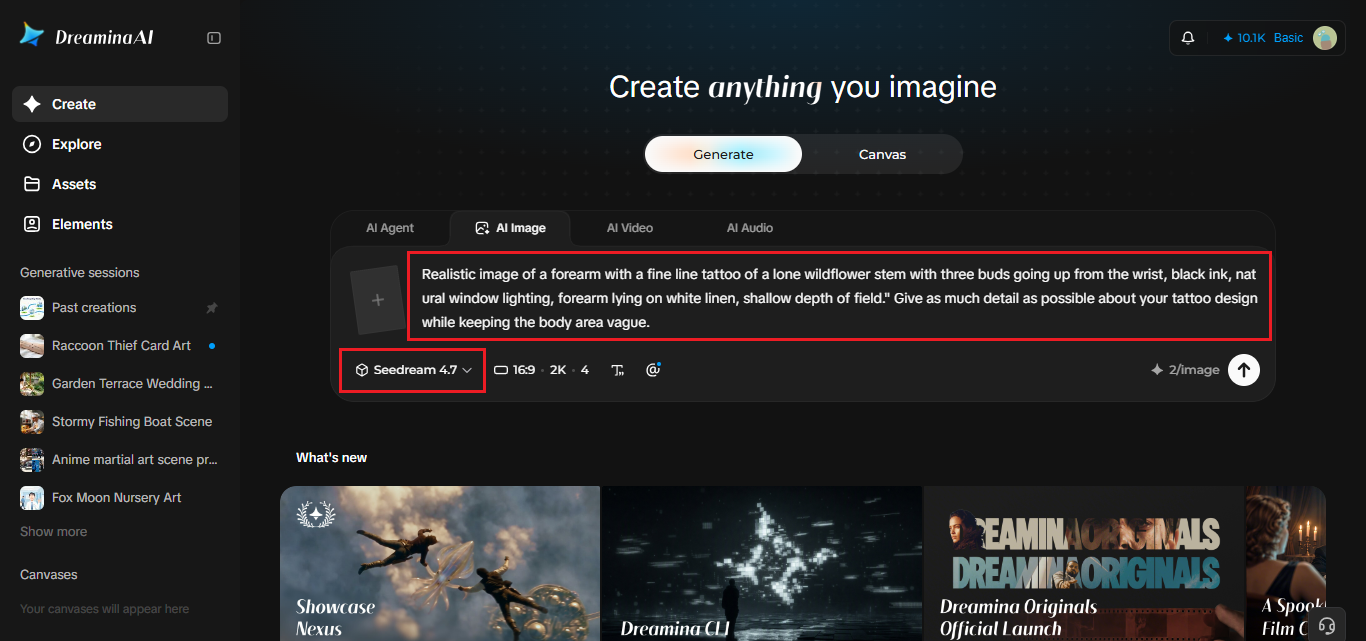
Step 1: Create a prompt
Open Dreamina and prepare a detailed prompt describing the tattoo you want to create. Include the artwork’s subject, line thickness, ink color, overall style, and lighting to help the AI produce a realistic preview.
For example: A realistic close-up photograph of a delicate wildflower tattoo featuring a slender stem and three small buds, fine black ink, clean lines, subtle botanical details, soft natural window lighting, neutral background, realistic skin texture, shallow depth of field, elegant and minimal appearance.
Describe the tattoo design in detail while keeping its placement on the body flexible. This helps you explore different styles and options before choosing the best spot for your tattoo.
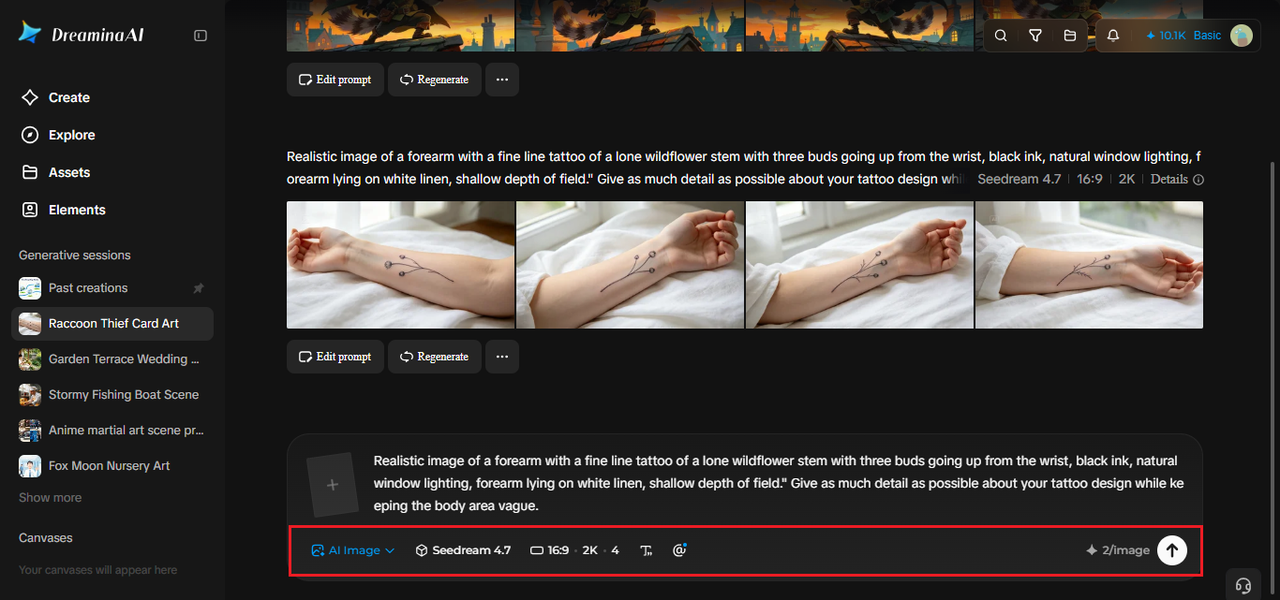
Step 2: Adjust parameters and render
Choose an AI model in Dreamina and adjust the aspect ratio, image size, and resolution for your tattoo preview. Use a vertical layout for long designs suited to arms or legs, or a square layout for wider designs. Select 1K for a quick preview or 2K when you want to inspect fine lines and small details more closely. Once your settings are ready, generate the image. Create at least two variations so you can compare the design’s proportions, placement, and overall appearance before choosing your favorite.
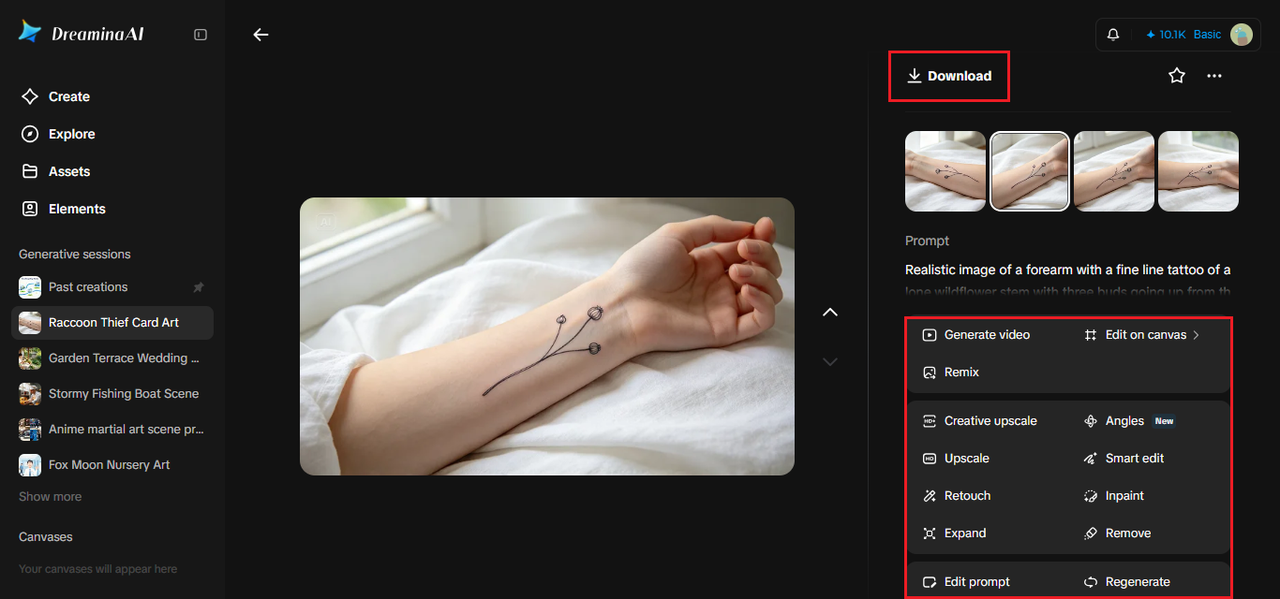
Step 3: Modify and download
Once you’ve created your tattoo mockup, use Dreamina’s editing tools to make adjustments and improve the final design.The Inpaint feature lets you modify selected areas, while Expand adds more space around the image to reveal additional surroundings. Use Remove to erase unwanted objects or details, and Retouch to improve areas that need a cleaner finish. Check the final image to ensure the tattoo looks realistic and the design is consistent. Once you’re happy with it, click Download to save the mockup and share it with your tattoo artist for feedback.
Placement ideas worth testing
Tattoo placement can influence how well a design fits your body. Elongated artwork, such as stems, fine lines, and lettering, often works well on forearms and calves. Compact patterns and circular designs can complement the shoulders or upper arms, while small symbols may suit the wrist or ankle. The ribs and back provide more room for detailed artwork, although the design may look different as your body moves. Try previewing the same tattoo in two or three locations to compare its appearance. Also, consider how visible it will be in professional settings and everyday situations. For a more accurate size comparison, print the mockup at its intended dimensions and hold it against the chosen area of your body.
What Seedream 5.0 Pro brings to detailed mockups
Fine lines and realistic placement demand control, and Seedream 5.0 Pro helps in several ways.
Crisp 2K detail
Higher resolution keeps delicate linework and skin texture clear enough to judge. Thin lines are the first thing to blur.
Precise regional edits
Point selection, lasso, and sketch guidance let you change one part of the design, like a petal or a line weight, without redoing the whole image. It’s useful for adjusting spacing.
Layered visual elements
The subject, background, and effects are kept separate, making it easier to change the background without altering the body area. That’s good for trying new angles.
Fewer rounds of revision
Instruction-precise editing means less trial and error when you’re fine-tuning proportions. Less guessing, more deciding.
Light and realism
Lighting plays an important role in the appearance of a tattoo preview. Gentle daylight can reveal the design’s details and contrast, whereas strong lighting may make fine lines harder to see. Include your actual skin tone and specify the intended body area to help the AI create a more realistic result. A relaxed, natural pose can also make the mockup look more authentic. Keep in mind that digitally generated tattoos may appear sharper than real tattoos, as ink can soften and change slightly as the skin heals and ages. Treat the image as a visual guide rather than an exact prediction of the final tattoo.
Taking it to a professional
An AI-generated tattoo preview is a planning tool, not a ready-to-use stencil. A professional tattoo artist can assess factors such as your skin, the chosen placement, line weight, healing process, and how the artwork may look over time. Take your mockups to the consultation as visual references and remain open to adjustments. Your artist may recommend changing the size, simplifying intricate details, or selecting a different location to achieve a better result. Trust their practical experience and avoid requesting an exact copy of another artist’s original work. Developing a design with your own personal touches can make it more distinctive. Before booking your appointment, discuss the expected healing time and the aftercare routine you’ll need to follow.
See it before you commit
Creating a tattoo you’re happy with begins with a well-defined concept. Using Dreamina and Seedream 5.0 Pro, you can explore different styles, sizes, and placements before committing to a permanent design. Write a detailed prompt, generate a few variations, and choose the option you’d like to discuss with a professional tattoo artist. Take your time comparing the results rather than making a quick decision. Give yourself at least a week to consider the design and make sure it still feels right before moving forward.