












How to Check a Website OS?
Every website runs on a server, which uses an operating system called website OS. There are different types of web operating systems. Some websites use Linux while others use Windows Server or Unix.
Many times, developers and web administrators need to check a website’s OS, web server, and hosting provider name. In this blog post, we are sharing some easy ways to perform these checks.
What Is a Website OS?
A website OS is the operating system that runs the web server. It helps the server handle files, website data, and online requests.
People often confuse a website OS with a CMS and hosting. However, they are different things.
A CMS is software used to build websites. Popular CMS platforms include WordPress and Joomla. While hosting is a digital service that keeps your website live on the internet.
An operating system runs the whole server behind the website. Some common website operating systems include:
- Linux
- Windows Server
- Unix
Linux is the most common choice because it is stable and low-cost.
How to Check a Web Server OS and Hosting Provider?
There are many ways you can check a web server and hosting provider. Here we are going to walk you through the easy ways. Let’s start with the hosting provider first.
Checking a website hosting provider
If you want to check the name of a website hosting provider whose administrator you cannot access, there are multiple methods.
1. Perform domain IP Lookup
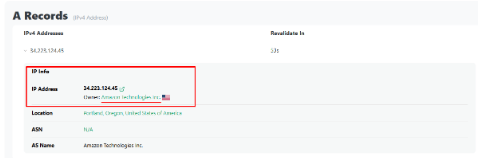
One easy way to check the hosting provider’s name is to perform a domain IP lookup. Simply open a domain IP lookup tool, enter the website domain name, and perform a lookup.
Among the results, you will see the hosting provider’s name next to the ‘Owner’ key (screenshot attached below for your reference). In some cases, the key name can be different. For example, Platform, Hosting, and more.
2. Check HTTP headers
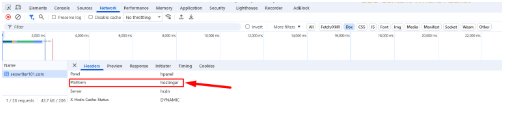
Another way to check a website’s hosting provider is to look at the website’s headers. For this, simply open the website in Chrome. Right-click and inspect the website or press ‘Ctrl+Shift+I’.
Next, inside inspect element, go to the ‘Network’ tab and click ‘Doc’. You will see the hosting provider’s name mentioned next to the ‘Platform’ (see the screenshot below carefully for better understanding).
Checking a web server OS
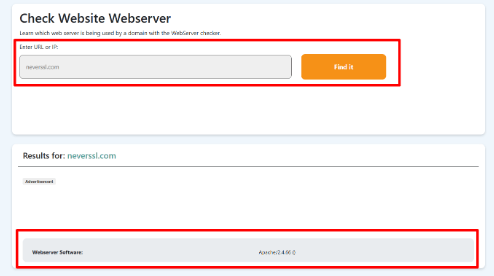
Many online tools can help you detect a website’s OS. You only need to open a Web Server OS Checker. Enter the website domain name. These tools scan web server information and show you the result right away.
For example, we run a domain name through a web server checker and get the results right away. Screenshot attached below for reference.
Can You Always Detect a Website OS?
No, you cannot always detect a website’s OS. Many websites hide server details to improve security.
Some websites also use:
- Firewalls
- Reverse proxies
- CDN services
These tools protect the real server information. Because of this, OS checker tools may show limited or incorrect results.
Is Checking a Website OS Legal?
Basic website OS checking is usually legal. Public tools only collect server details that websites share openly. However, harmful scanning or hacking attempts are illegal.
Let’s Wrap it Up
Checking a website’s OS is simple when you use the right methods. You can check the hosting provider, web server, and operating system by using the methods we shared in this blog post above.
However, some websites hide their server details for better security. That is why results may not always be fully accurate. Always use these methods in a safe and legal way.